How to Clean Your Computer Safely (Inside and Out)
Why Cleaning Your Computer Matters
1/4/20261 min read


Over time, dust, dirt, and unnecessary files can slow down your computer and even cause hardware damage. Regular cleaning helps your device run faster, stay cooler, and last longer.
This guide covers both physical cleaning and digital cleanup - safely and effectively.
Part 1: Physical Cleaning (Hardware)
What You’ll Need
Microfiber cloth
Compressed air can
Soft brush (optional)
Isopropyl alcohol (70% or higher)
Cotton swabs
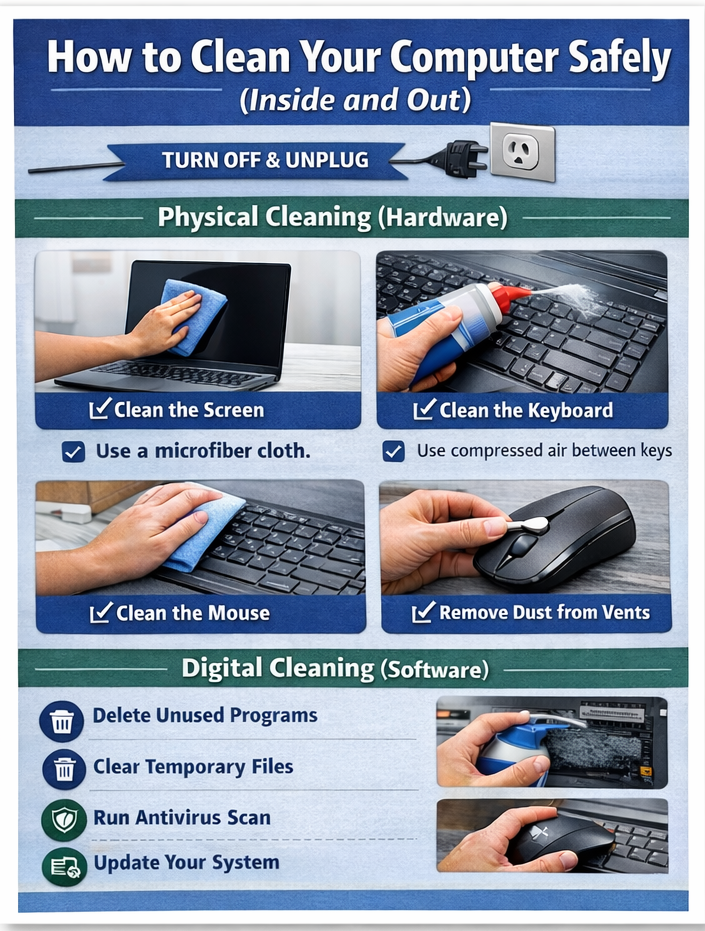
⚠️ Always turn off and unplug your computer before cleaning.
Step 1: Clean the Screen
Use a microfiber cloth.
If needed, lightly dampen the cloth with water or screen cleaner.
Never spray liquid directly onto the screen.
Step 2: Clean the Keyboard
Turn the keyboard upside down and gently shake it.
Use compressed air between keys.
For sticky keys, lightly dip a cotton swab in alcohol and clean around them.
Step 3: Clean the Mouse
Wipe the surface with alcohol.
Clean the sensor area gently.
For mouse wheels, use compressed air.
Step 4: Remove Dust from Vents
Use compressed air to blow dust out of air vents.
This helps prevent overheating.
💡 Tip: Do this every 2–3 months, especially if you have pets.
Part 2: Digital Cleaning (Software)
Step 1: Delete Unused Programs
Uninstall apps you no longer use.
This frees storage and improves performance.
Step 2: Clear Temporary Files
On Windows: Use Disk Cleanup
On macOS: Use Storage Management
Step 3: Run Antivirus Scan
Run a full scan using Windows Defender or a trusted antivirus.
Remove any detected threats.
Step 4: Update Your System
Install OS and software updates.
Updates fix security vulnerabilities and bugs.
Final Thoughts
A clean computer runs faster, stays cooler, and is more secure. By combining physical cleaning with digital maintenance, you protect your investment and improve daily performance. If you are unable to complete these steps independently, please contact us for support.